Exodus connects Trezor hardware wallets through separate desktop and mobile integrations
Exodus supports Trezor Model One, Model T, Safe 3, and Safe 5 through its desktop USB integration. Safe 7 uses the mobile Bluetooth integration on iOS and Android. Each hardware portfolio has its own supported assets and account rules. Synchronizing a portfolio to another platform provides viewing access without extending its signing support.
A compatible device does not make every asset in the software wallet available through hardware signing. The relevant match includes the device model, application platform, network, and account that holds the funds.
Synchronizing a Trezor portfolio extends balance viewing to another platform, while hardware signing remains tied to the model's supported integration.
Hardware Signing and Portfolio Access
Exodus is the wallet interface for a Trezor portfolio; the hardware device signs outgoing transactions after approval on its own screen. Supported balances and transaction history appear in a separate hardware portfolio. The connected app broadcasts the signed transaction to the network. Trezor private keys remain on the hardware device when it signs transactions through the integration. One interface can therefore display a software wallet and a hardware wallet without merging their keys. The blockchain records the assets; the portfolio represents the app's view of that wallet.
Desktop pairing stores public wallet information and transaction history on the computer. Those records can reveal holdings without granting spending authority. A shared computer therefore presents a privacy concern even when the hardware device protects the private keys.
Device Setup and Connection Requirements
Trezor access requires a supported model and compatible firmware, with an initialized wallet before the hardware can authorize spending through the app.
Desktop USB Access
Desktop access uses an unlocked device and a USB cable that carries data. A cable that only supplies power cannot establish wallet communication. Other applications that access the hardware, including Trezor Suite, can interfere with detection. The connected indicator beside the correct portfolio confirms communication with the app.
Model One requires initial setup in Trezor Suite. Model T, Safe 3, and Safe 5 also have an initialization route within the desktop app.
Safe 7 Mobile Pairing
Safe 7 requires initial setup in Trezor Suite before mobile pairing. Bluetooth communication uses the authenticated, encrypted Trezor Host Protocol. Android pairing also requires location services. Pairing includes matching the codes on both devices, approving the connection on Trezor, and entering its one-time security code in the app.
Which Trezor Models Work on Desktop and Mobile?
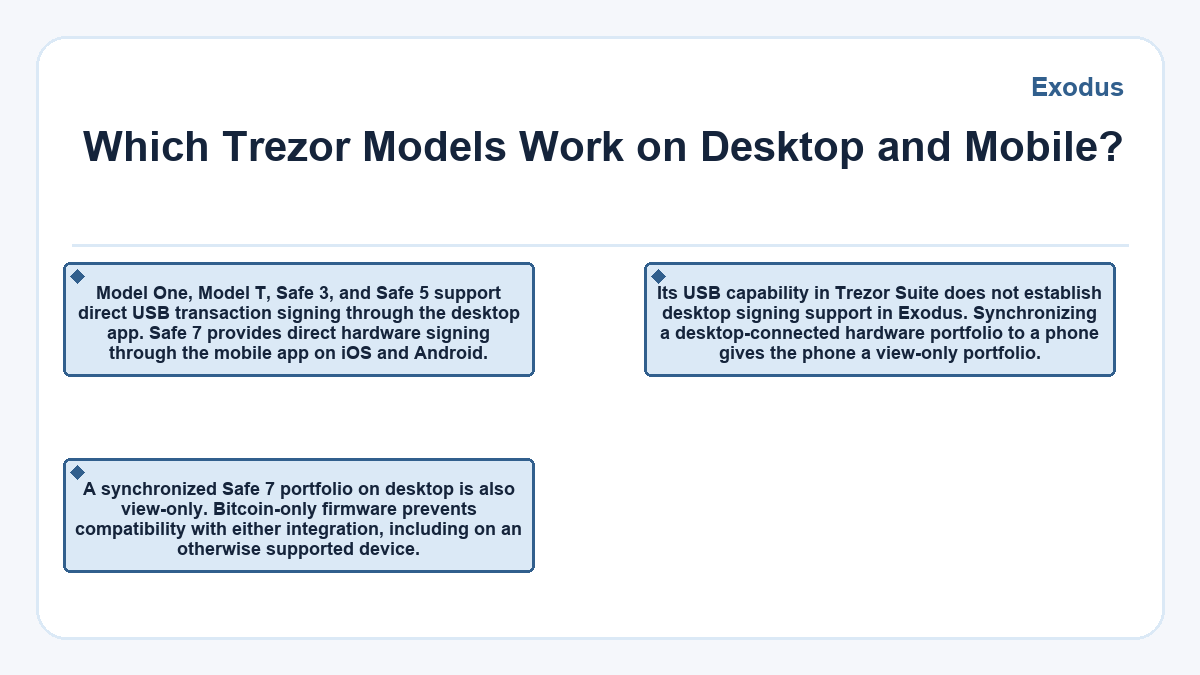
Model One, Model T, Safe 3, and Safe 5 support direct USB transaction signing through the desktop app.
Safe 7 provides direct hardware signing through the mobile app on iOS and Android. Its USB capability in Trezor Suite does not establish desktop signing support in Exodus.
Synchronizing a desktop-connected hardware portfolio to a phone gives the phone a view-only portfolio. A synchronized Safe 7 portfolio on desktop is also view-only.
Bitcoin-only firmware prevents compatibility with either integration, including on an otherwise supported device.
Asset Support Across the Two Integrations
Trezor asset compatibility combines the device's capabilities with the asset and network support that its selected app integration provides.
Desktop Assets
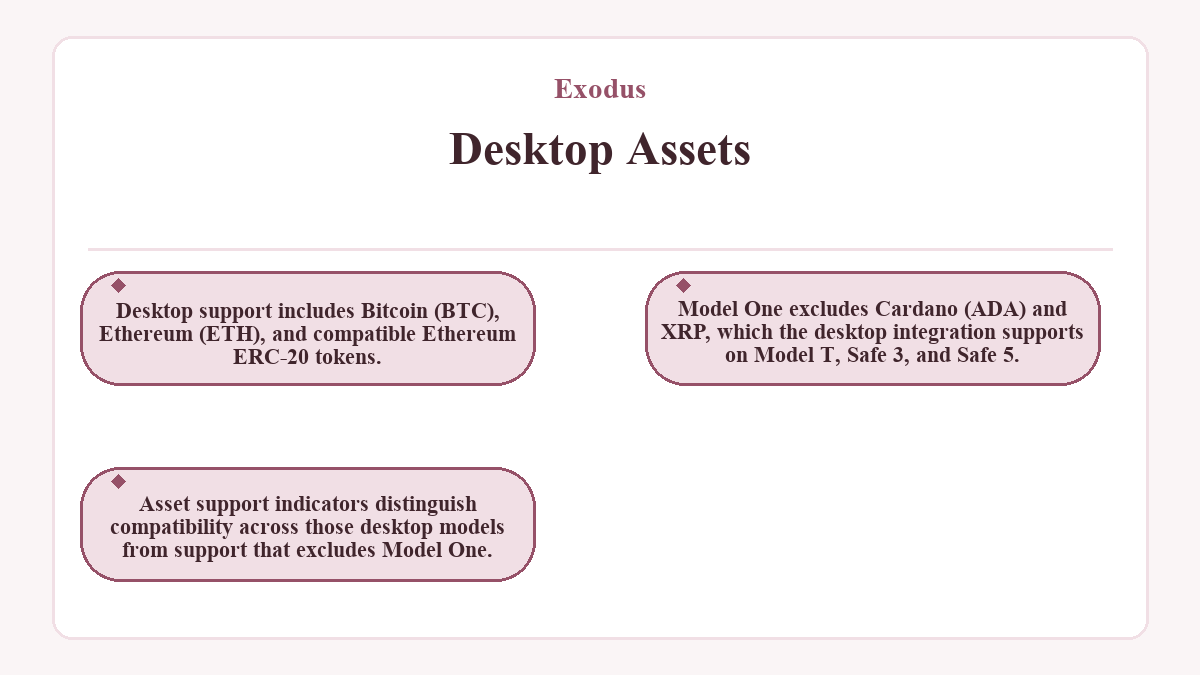
Desktop support includes Bitcoin (BTC), Ethereum (ETH), and compatible Ethereum ERC-20 tokens. Model One excludes Cardano (ADA) and XRP, which the desktop integration supports on Model T, Safe 3, and Safe 5. Asset support indicators distinguish compatibility across those desktop models from support that excludes Model One.
Safe 7 Assets
Safe 7 mobile portfolios support Bitcoin, Ethereum, Solana (SOL), and XRP. Their token support includes Ethereum ERC-20 tokens and Solana SPL tokens. These are separate network-specific capabilities.
Safe 7 portfolios in the mobile app support only Native SegWit Bitcoin receiving addresses.
Custom Tokens
Custom tokens add assets within supported networks. Desktop Trezor portfolios accept custom Ethereum tokens; the Safe 7 mobile integration also accepts custom Solana tokens. The token's contract or mint address identifies it more precisely than its displayed name. Adding a token does not change the hardware portfolio's supported networks or make a similarly named token on another network compatible.
Account Paths and Balance Visibility
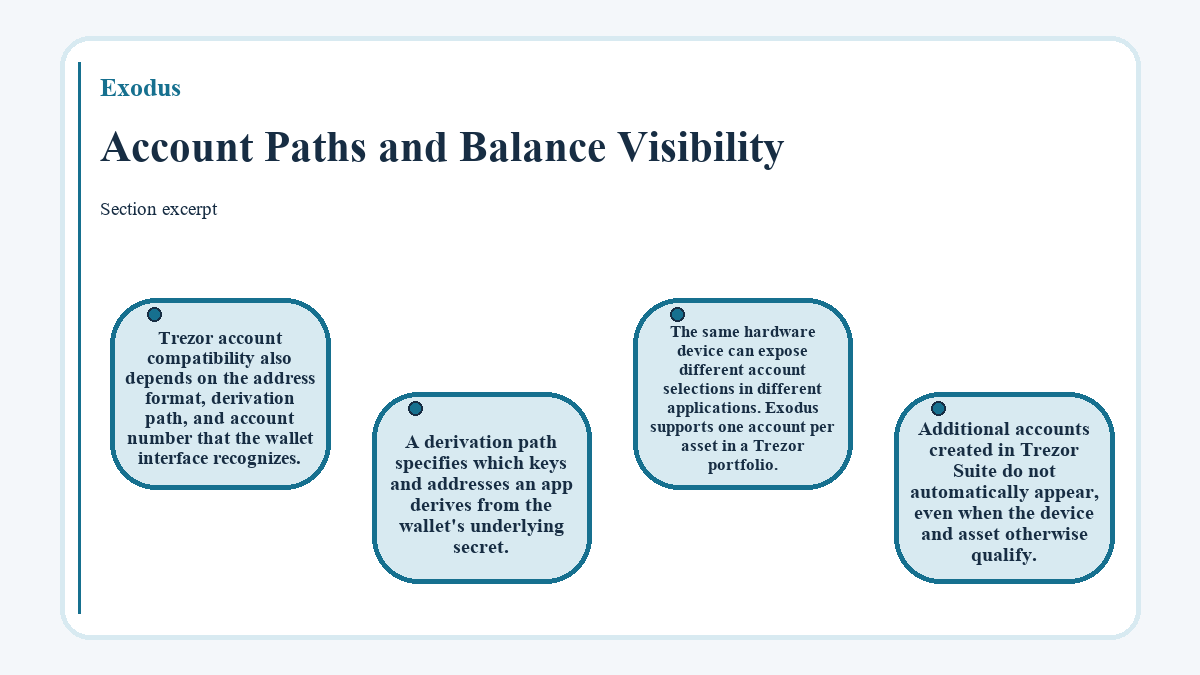
Trezor account compatibility also depends on the address format, derivation path, and account number that the wallet interface recognizes. A derivation path specifies which keys and addresses an app derives from the wallet's underlying secret. The same hardware device can expose different account selections in different applications. Exodus supports one account per asset in a Trezor portfolio. Additional accounts created in Trezor Suite do not automatically appear, even when the device and asset otherwise qualify.
Cardano's Trezor Suite derivation path differs from the path that the desktop integration supports. A compatible model can support ADA transactions without displaying balances held under that other path. An empty portfolio can also reflect a different passphrase wallet; it does not, by itself, establish lost funds.
Passphrase wallets have their own addresses and balances. Exact spelling, capitalization, and spaces determine which wallet the device opens. Safe 7 supports this option through the mobile integration after the passphrase feature has been enabled in Trezor Suite. At an initial connection, a mistyped passphrase can open a different, empty wallet. When signing from an already connected passphrase portfolio, a mismatch can prevent transaction signing. The same device can therefore connect successfully while the selected portfolio lacks access to the intended holdings.
A Phone-Only Sending Requirement
In this hypothetical case, a reader with an existing desktop-supported Trezor wants to send funds from a phone without a computer. The question is whether synchronization supplies that capability.
The desktop connection provides both balance visibility and device-approved sending through USB. The synchronized mobile portfolio provides balance visibility alone. Sending still requires the hardware device connected to the desktop app.
The desktop portfolio's green connected indicator confirms hardware communication. The synchronized phone portfolio is view-only, so the reader cannot send funds from it using only the phone.
Staking Restrictions and Retired Asset Support
Trezor staking support differs by integration: the desktop app does not support it, while Safe 7 on mobile supports Solana staking. Staking transactions require hardware approval. Network conditions affect activation, unstaking, and access to unstaked SOL. Certain wallet addresses and jurisdictions cannot add stakes through the app, although existing stakes can still be unstaked. Buying, selling, and swapping have their own service and jurisdiction requirements, separate from hardware asset compatibility.
Monero (XMR) support ended on August 18, 2025. The wallet no longer provides XMR balances or transfers, including through its Trezor integration. That change did not remove existing holdings controlled by a Trezor wallet. Access to those holdings requires another wallet app that supports both the particular Trezor model and Monero (XMR).
Exodus: quick answers
Can I Connect Multiple Trezor Devices to the Desktop App?
The desktop app can keep separate portfolios for multiple compatible Trezor devices. Sending is available from the device that is actively connected by USB. Other hardware portfolios remain read-only until their corresponding device is connected, so several displayed balances do not represent several active signing connections.
Does Pairing Trezor Automatically Protect Funds Already in the Software Wallet?
Pairing a Trezor does not move existing software-wallet funds or replace the keys that control them. A separately created hardware wallet has its own addresses. Moving funds between those portfolios requires a blockchain transfer, which incurs a network transaction fee.
Where Do I Update the Firmware on Trezor Safe 7?
Safe 7 firmware updates use Trezor Suite. Keep the Trezor wallet backup available before starting an update because a failed installation can erase device memory. Pairing with Exodus Mobile does not replace the Suite firmware-update process.
What Happens to My Funds If I Remove a Trezor Portfolio From the App?
Removing a Trezor portfolio leaves its blockchain balances under the same wallet keys. It removes the app's portfolio entry. Deleting the portfolio on desktop also erases its swap history, which reconnecting the device cannot restore. Access still depends on the hardware wallet and any passphrase that defines the selected wallet. Reconnecting the appropriate device and wallet can restore the supported portfolio view.